Setting the Order Grouping Pharmacy Preference
This topic is intended for Independent pharmacies only and is not applicable to Rexall pharmacies.
A pharmacy-level Order Grouping preference controls the availability of the Order Grouping feature at the product level. Users with Ordering permissions in the Security Administration Facility window will be able to set this preference.
Turning the Order Grouping Pharmacy Preference ON
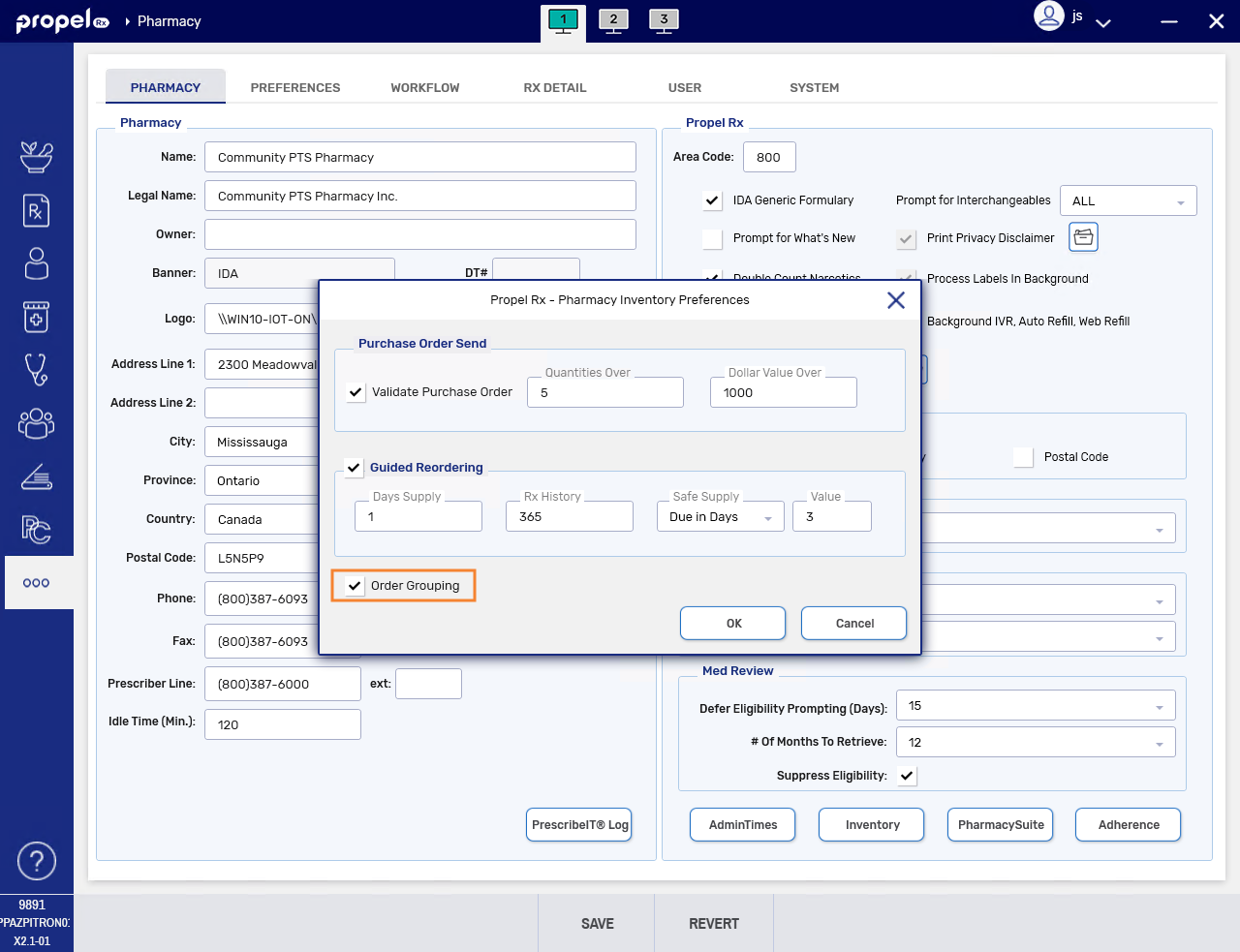
To use Order Grouping, the pharmacy-level preference must first be turned ON. When turned ON, Order Groups are automatically created for all products that have a GCN.
No changes will be made to items already on the Order Pad when Order Grouping is enabled. It is recommended to send any outstanding orders before turning the Order Grouping preference ON.
To enable Order Grouping at the pharmacy level:
-
Select More (...) > Pharmacy.
-
At the bottom right, select the Inventory button.
-
Select the Order Grouping checkbox.
-
Select OK.
-
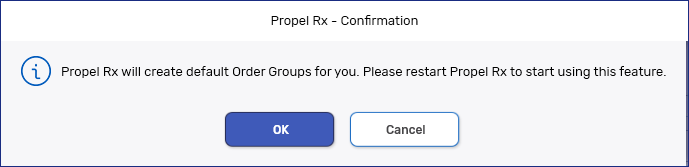
A prompt appears. Order Groups will be automatically created based on GCN. Select OK.
-
Select Save.
-
Restart Propel Rx on all computers for the changes to take effect.
What's Next?
When the Order Grouping preference is enabled, a corresponding Order Group button becomes available in the Drug Folder Inventory tab for all products with a GCN. From the Drug Folder, you can add or remove products from an Order Group. See Adding Products to an Order Group and Removing Products from an Order Group for more information.
Turning the Order Grouping Pharmacy Preference OFF
When Order Grouping is turned OFF, all Order Groups are deleted and individual reorder methods and parameters are restored in the Drug Folders.
To disable Order Grouping at the pharmacy level:
-
Select More (...) > Pharmacy.
-
At the bottom right, select the Inventory button.
-
Deselect the Order Grouping checkbox.
-
Select OK.
-
Select Save.
-
Restart Propel Rx on all computers for the changes to take effect.